
AI App Works in Preview But Not Live
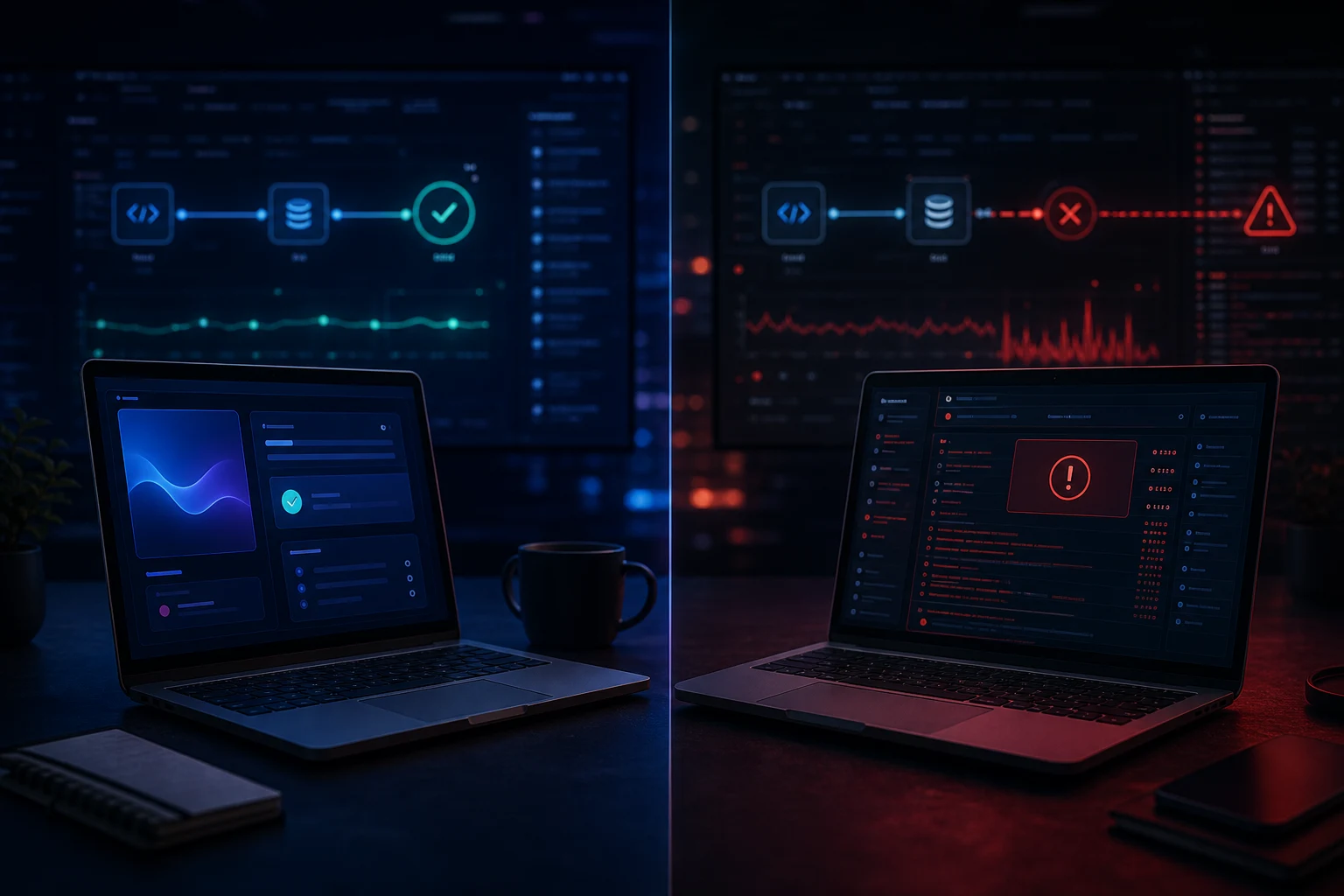
Why AI-built apps can look fine in preview but fail live, with checks for routing, production settings, environment variables, APIs and hosting.
When an AI app works in preview but not live, preview has only proved that the app can run in the builder environment. It has not proved that production routes, variables, APIs, auth callbacks, database rules or hosting settings are correct.
This is a common reason people need AI app repair. The symptom may be a blank page, broken form, login loop, failed API call or route that only breaks after refresh.
Why preview can mislead you
Preview environments are designed for speed. They may proxy requests, inject temporary values, use relaxed development behaviour, skip some production checks or keep state in ways the live app cannot.
Live hosting is stricter. Static assets need correct paths, server routes need supported runtime behaviour, secrets must exist on the host, and browser requests must respect CORS, HTTPS and domain rules.
Check the live browser evidence
Start with the browser console and Network tab on the live app. Look for JavaScript errors, failed API calls, missing assets, blocked requests, 404 routes and CORS messages.
If a feature fails after the page loads, inspect the failing request. The URL, response status, response body and request origin usually tell you more than the app’s visible error message.
- Test in a private window.
- Hard refresh the live URL.
- Check failed scripts and API requests.
- Compare live and preview behaviour step by step.
Common generated-app mistakes
AI tools may use localhost URLs, example keys, hard-coded callback paths, demo database tables or client-side calls to services that should be server-side. Preview can let some of this appear to work.
Production exposes the mismatch. Auth providers reject live callback URLs, database rules block writes from a real user, APIs refuse browser requests, and hosts return 404 when routing is incomplete.
Do not fix the wrong layer
A live-only failure can look like frontend code even when the cause is configuration. A blank dashboard after login may be caused by auth, a missing token, database rules or a server function failure.
If you are unsure which layer is failing, get a targeted website and app diagnosis before asking AI to rewrite visible components.
What to capture
Save the live URL, preview URL, exact working preview journey, failing live step, console errors, failed network requests and deployment logs. Note whether it happens only after login, only on refresh or only on mobile.
This evidence keeps the fix specific. A first-load blank page is different from an API 401, and a route refresh failure is different from a broken serverless function.
Live-app checklist
Use this checklist before changing code:
- Console error copied from live URL.
- Failed network request inspected.
- Production variables checked.
- Auth callback domain checked.
- Deep route refresh tested.
- Relevant logs saved.

Short conclusion
Preview-to-live problems are usually repairable, but they need production evidence. An AI app repair pass can stabilise the live setup without losing the parts that already work.
The preview-to-production gap
Preview is a workspace. Production is an environment. The workspace often knows about the files, temporary state, local endpoints and builder assumptions that helped the app run during development. Production only knows what was deployed and configured on the host.
That gap explains why a feature can look polished in preview and fail on the live domain. The generated code may rely on a preview proxy, a local URL, a temporary user session or a database permission that was never configured for production.
Symptoms that point to configuration
Configuration problems usually show up at boundaries: login redirects, API calls, database reads, forms, email, payments and route refreshes. The page may render, but the action fails when it crosses from frontend code into a provider or server function.
If the live app breaks only after clicking a button or submitting a form, inspect that request before editing the component. The visible button may be fine. The production endpoint, token or provider setting may be wrong.
- Login returns to the wrong domain.
- API request uses localhost or a preview URL.
- Database write returns 401 or 403.
- Direct route refresh returns 404.
- Email or webhook endpoint still points at a test URL.
Symptoms that point to generated code
Code problems usually show as console errors, hydration failures, missing imports, undefined values or components that assume data always exists. These are common when AI builds from happy-path examples and does not add defensive handling for production responses.
If the console names a generated component or hook, repair that component in context. Do not ask the builder to redesign the whole screen unless the structure is genuinely unsalvageable.
A better live test
Test the live app as a new visitor, not as the person who built it. Use a private window, a clean login, a mobile viewport and the final domain. Refresh protected routes, submit incomplete forms and test what happens when an API returns no data.
This catches the problems preview often hides. It also gives you a precise report if you need help: what worked in preview, what failed live, and the exact step where the two diverged.
How to decide whether the preview should be trusted
Preview should be trusted as a design and behaviour draft, not as a production test. If the feature only proves itself inside the builder, treat it as unfinished until the same journey works on the final domain with production variables and real provider settings.
A useful way to think about this is to mark each feature as preview-only, deployed-but-untested, or production-tested. Preview-only means it looked right in the builder. Deployed-but-untested means the page loads live, but the form, API, auth or database path has not been checked. Production-tested means the live user journey has been completed from start to finish.
This prevents false confidence. Many AI-built apps look complete because the main screen renders. The commercial risk usually sits one or two clicks deeper, where a real user submits data, logs in, refreshes a route, pays, receives an email or expects saved information to persist.
If you need a broader production review, link the live symptoms to the wider service rather than guessing. For example, a preview-to-live failure that also includes broken code paths may belong with AI code repair, while a site-wide live failure may need website repair alongside deployment work.
- Mark each key feature as preview-only, deployed-but-untested or production-tested.
- Test with a fresh browser session, not the builder session.
- Include routes, forms, auth, API calls and database writes in the production test.
- Record any difference between preview and live before editing.