
Lovable App Not Working? How to Diagnose the Problem

Lovable app not working? Use this practical diagnosis process before adding another AI fix.
When a Lovable app stops working, it is tempting to assume the whole project is broken. In practice, most failures have a smaller cause: a missing environment variable, a Supabase rule, a failed API call, a mobile layout issue, or a patch that changed one part of the app while another part still expects the old behaviour.
Do not assume the whole project is broken
Start by separating the symptom from the system. A login screen failing does not automatically mean the database is wrong. A form that does not submit does not automatically mean the frontend is broken. One route, one role or one device may be affected while the rest of the app is fine.
Open the app as a normal user and write down the exact point where it fails. Include the page, action, browser, device and account state. That small record prevents you from chasing five different guesses at once.
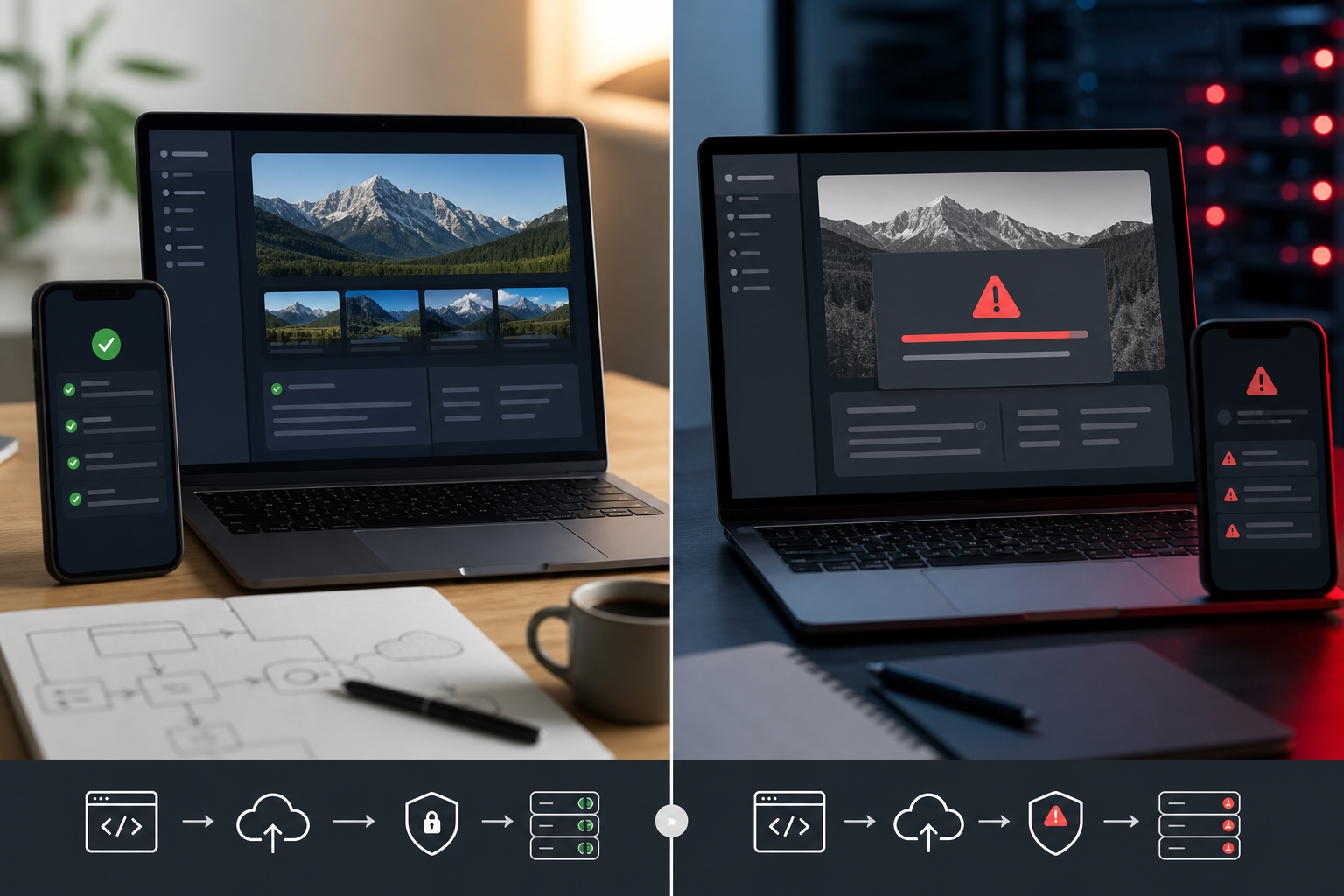
Identify what changed before the problem started
Most app failures follow a change. It may be a Lovable prompt, a Supabase setting, a new table, an OAuth provider, a deployment, a domain change, or an API key rotation. If you can connect the first failure to the last change, the diagnosis becomes much faster.
- Check the last prompt or code change.
- Check whether Supabase settings changed.
- Check whether the live URL, domain or redirect URL changed.
- Check whether an external service changed its key, plan or permissions.
Check whether the issue happens in preview, live or both
Preview and live behaviour are separate clues. If the app works in preview but not live, focus on deployment, environment variables, redirects, live API domains and cached assets. If both fail, the problem is more likely to be code, database rules, authentication flow or shared configuration.
For a deeper version of this scenario, use the guide for a Lovable app that works in preview but not live.
Check browser console and network errors
The browser console often tells you whether the frontend is failing before the request leaves the browser. Network errors tell you whether a request was sent, blocked, rejected or returned a server error. Look for failed requests, CORS messages, 401 or 403 responses, 404 function paths and 500 server errors.
Do not paste every console error into another prompt without reading the pattern. One real error often causes several follow-on warnings. Fixing the first failure is usually more useful than patching every message.
Test authentication and Supabase connections
Authentication problems often look like general app failure because users cannot reach the protected parts of the product. Test signup, login, logout, password reset, OAuth redirects and session persistence. Then check Supabase Site URL, redirect URLs, email confirmation settings and row-level security.
If login is the main symptom, follow the focused guide to Lovable and Supabase authentication problems.
Test forms, database writes and permissions
A form can look successful while the database write is rejected. Check whether the submit handler runs, whether the request is sent, whether Supabase accepts it and whether row-level security allows the current user to write the record. A working admin account does not prove the same journey works for a new user.
Check APIs, environment variables and integrations
Many Lovable projects connect to external APIs, CRMs, email services or payment tools. Production domains may need to be allowlisted, CORS may need configuration and secrets must exist in the deployed environment. Missing variables can produce vague frontend errors because the real failure happens in a function or integration layer.
Check mobile layouts and navigation
A project can function technically and still be unusable on a phone. Test the main journey on a real mobile viewport: navigation, signup, form fields, error messages, modals, sticky buttons and confirmation states. Mobile breakage is especially common after repeated layout prompts.
Check whether Lovable is repeatedly patching the symptom
If each prompt fixes one screen and breaks another, stop. That pattern usually means the root cause is still present. More patches can create duplicated state, conflicting components or conditional logic that nobody can trust.
At that point, it is usually faster to find the actual cause and then repair unstable AI-generated code where needed.
What to send for diagnosis
- The live URL and, if relevant, the preview URL.
- The exact user journey that fails.
- Screenshots or recordings of the failure.
- Browser console and network errors.
- Supabase project areas involved: auth, tables, policies, functions or storage.
- Recent prompts, deployments or configuration changes.
Final practical checklist
- Reproduce the issue once and record the exact steps.
- Confirm whether it affects preview, live or both.
- Check browser console and failed network requests.
- Test login, forms, database writes and mobile layout.
- Check environment variables, redirects and API domains.
- Stop prompting if every fix creates another failure.
Conclusion and soft CTA
Lovable can be a strong way to move quickly, but speed does not remove the need for diagnosis. If your app is not working and the cause is unclear, the best next step is not another blind patch. Send the details through the Lovable app repair page. For urgent live failures or failed launches, our emergency website fixes page explains how to report time-sensitive issues.
How to narrow the fault without making it worse
Work in a fixed order. First reproduce the problem. Then observe the error. Then change one thing. Then test the same journey again. This sounds slow, but it is faster than asking for a broad repair and then discovering that three other screens have changed. A Lovable project can contain frontend state, Supabase calls, functions, routing and deployment settings in the same user journey, so uncontrolled changes make the next diagnosis harder.
Use a simple diagnosis note while testing: what you clicked, what you expected, what happened, whether the console showed an error, whether the network request succeeded, and whether Supabase received anything. That note is useful for you, for Lovable prompts, and for any developer who needs to take over. It also stops the conversation becoming vague. “The app is broken” is hard to repair. “The signup request returns 403 on the live URL when a new user submits the form” is actionable.
What different error types usually mean
A blank page often points to a frontend runtime error, missing build asset or route problem. A form that submits but does not save usually points to validation, permissions, RLS or API handling. A login loop often points to session handling, redirect settings or route guards. A button that does nothing may be an event handler problem, but it may also be a hidden JavaScript error stopping later code from running.
Status codes help too. A 400 usually means the request was malformed. A 401 usually means the user is not authenticated. A 403 usually means the user is authenticated but not allowed. A 404 usually means the route, API or function cannot be found. A 500 usually means server-side logic failed. These are not perfect rules, but they are enough to decide where to look next.
When the problem is business logic rather than a visible bug
Not every problem announces itself with a red error message. Sometimes the app technically works but does the wrong thing: a lead is saved without the right status, a user can skip a required step, a dashboard shows another user’s data, or an admin workflow relies on a field that is never created. These problems matter because they affect trust, operations and data quality.
For non-technical owners, the safest approach is to test the actual business journey from start to finish. Use a new account. Submit realistic data. Check the database. Check the confirmation state. Check the email or integration if there is one. A demo that only checks the happy path may miss the failure that customers will hit first.
How to write a better repair prompt if you keep working in Lovable
If you continue prompting, give Lovable the narrowest possible task. Include the route, the exact behaviour, the error text, the relevant Supabase table or function, and what must not change. Ask it to explain the suspected cause before changing code. That gives you a chance to spot whether it is about to rewrite the wrong layer.
Avoid asking it to rebuild the entire authentication flow, recreate the database, replace the deployment setup or “make it production ready” in one step. Those broad prompts can be useful early in a prototype, but they are risky once the app already has connected services and real user journeys.
What a developer will usually check first
A developer will normally start with the failing journey, not the entire codebase. They will reproduce the issue, inspect browser errors, compare preview and live behaviour, check environment variables, review the relevant Supabase table or policy, and inspect any Edge Function logs. If the failure is isolated, the repair can often be small.
If the codebase has been heavily patched, the developer may also check for duplicated components, multiple sources of truth, unused state, conflicting route guards, and mismatched types. That is not about criticising the way the app was built. It is about finding the point where fast iteration started to create hidden complexity.
Example diagnosis walkthrough
Imagine the app loads, but a customer cannot submit an enquiry. The first check is not to rewrite the form. First, submit the form yourself and watch the browser network panel. If no request appears, the issue is probably in the frontend event handler, validation, disabled button state or JavaScript runtime. If a request appears and returns 401 or 403, the issue is probably authentication or permissions. If it returns 500, the issue may be an Edge Function, API or server-side error.
Next, check whether the same form works in preview. If preview works and live fails, look at live environment variables, published build state, CORS and production API domains. If both fail, inspect the shared code and Supabase rules. Then check the database directly. Did a record appear? Was it missing required fields? Did RLS block it? This process turns a vague “form broken” issue into a specific repair path.
Now imagine the login page works for one account but not another. That may not be a login bug at all. The failing account may be unconfirmed, missing profile data, blocked by a policy, or redirected to a route that requires a record that was never created. Test with a new account and an existing account. Check Supabase auth, then check the user profile table or related records. A proper diagnosis follows the user journey across the frontend and the backend.
How to decide whether to keep prompting
Keep prompting when the issue is small, well understood and low risk. For example, changing button copy, adjusting spacing, adding a simple validation message or fixing a clearly described component bug can be reasonable. Stop prompting when the project starts changing in places you did not ask it to change, when the same bug returns, or when the error involves data, authentication, production deployment or private keys.
A useful rule is this: if the next prompt might affect real customer data or live access, pause and diagnose first. That does not mean the app is beyond repair. It means the cost of an uncontrolled fix is higher than the cost of inspection. AI helped you build faster; diagnosis helps protect that speed from turning into rework.
When asking for outside help, send a concise summary rather than a long emotional history of the whole project. Include the failing route, the expected behaviour, the actual behaviour, any error code, whether preview and live differ, and what changed recently. Good input leads to faster diagnosis and fewer unnecessary changes.