
Wix AI Contact Form Not Working?
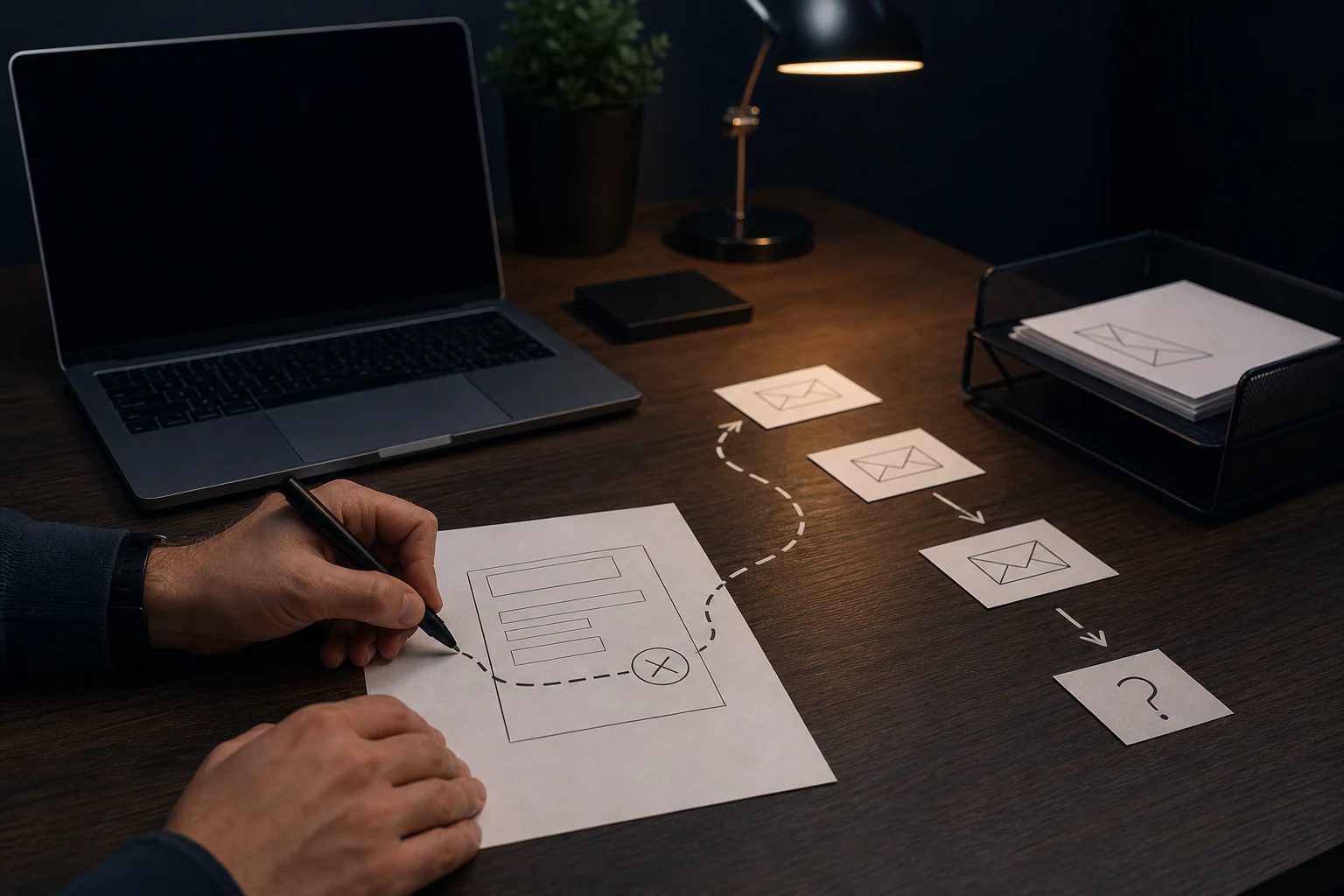
A Wix AI contact form not working can mean several different things. The form may not submit, the confirmation message may not appear, enquiries may not reach the right inbox, required fields may block users, or the form may work on desktop but feel awkward on mobile. Sometimes the business only notices because customers say they tried to get in touch and heard nothing back.
What the problem usually looks like
A Wix AI contact form not working can mean several different things. The form may not submit, the confirmation message may not appear, enquiries may not reach the right inbox, required fields may block users, or the form may work on desktop but feel awkward on mobile. Sometimes the business only notices because customers say they tried to get in touch and heard nothing back.
Forms are business-critical. A Wix AI website can look complete, but if enquiries disappear or the contact route feels untrustworthy, the site is not doing its job. That is why form testing is part of our Wix AI website repair process rather than a minor finishing touch.
Likely causes
Common causes include notification emails going to the wrong address, spam filtering, missing required field settings, a disconnected form, a button that links to the wrong place, a third-party app conflict or a form embedded in a section that behaves poorly on mobile. Sometimes the form sends correctly, but the follow-up process is unclear, so enquiries are missed after submission.
A Wix AI-generated page may also create a contact area that looks right visually but has not been tested as a full enquiry path. The question is not only whether a form exists. It is whether a real visitor can complete it, submit it, get a useful confirmation and know what happens next.
What to check first
Send a test enquiry from the published site, not just preview. Use a different email address from the one receiving notifications. Check the inbox, spam folder, Wix dashboard, any connected CRM, and the confirmation message shown to the visitor. Then repeat the test on mobile.
Check every field. Required fields should be genuinely necessary. The message box should be large enough for a useful enquiry. The submit button should have visible text. If the form is part of a wider broken contact journey, review the page through Find What’s Broken rather than only changing form settings.
- Test submission on the live site.
- Check notification recipient addresses.
- Review spam and email delivery.
- Confirm the thank-you or confirmation message.
- Check mobile form usability.
- Make sure the contact page and CTA buttons point to the right form.
What not to do
Do not assume one successful test means the form is fully reliable. Test more than one device and check whether notifications arrive consistently. Do not add multiple duplicate forms across the site without a reason, because that can make tracking and follow-up more confusing.
Do not treat the form as separate from the page. If the surrounding copy is vague, the call to action is weak or the visitor does not trust the business yet, the form may be technically working but still fail commercially.
When to stop editing and get help
Get help when enquiries are business-critical, when customers report failed submissions, when you cannot confirm where messages are going, or when form repairs start affecting the page layout. If the problem is costing live enquiries, Emergency Website Fixes may be appropriate. For less urgent but important repair, use Fix My Website.

Practical checklist
Before relying on a Wix AI contact form, check the full journey from visitor intent to business follow-up.
- Form is visible where visitors expect it.
- Field labels are clear.
- Required fields are sensible.
- Submit button text is visible.
- Confirmation message appears after submission.
- Notification reaches the right inbox.
- Spam folder has been checked.
- Mobile users can complete the form easily.
Short conclusion
A Wix AI contact form problem is not always just a form setting. It can involve email delivery, page layout, mobile usability and the wider enquiry journey. Test the whole path before assuming the site is ready.
Check the whole enquiry journey
A form can technically submit and still fail as a business tool. The visitor needs to find it, understand what to enter, receive a clear confirmation and trust that someone will respond. The business also needs the notification to reach the right person.
Test the journey from both sides. Submit the form as a visitor, then check the recipient inbox, spam folder, notification settings and any CRM or automation connected to the form.
Common form details people miss
Small form details can block enquiries. Required fields may be too strict, button text may be vague, the confirmation message may be missing, or the form may sit too low on a mobile page.
If the site has several contact routes, make sure they are consistent. A phone link, email link, booking button and form should all support the same enquiry journey rather than sending visitors in different directions.
When form repair affects conversion
A repaired form should reduce doubt as well as send messages. Visitors should know what they are asking for, how long the reply may take and whether the business has received the enquiry.
That means the form, surrounding copy and follow-up message should work together. If one part feels unfinished, the visitor may hesitate even when the technical form settings are correct.