
Hostinger Contact Form Not Working?
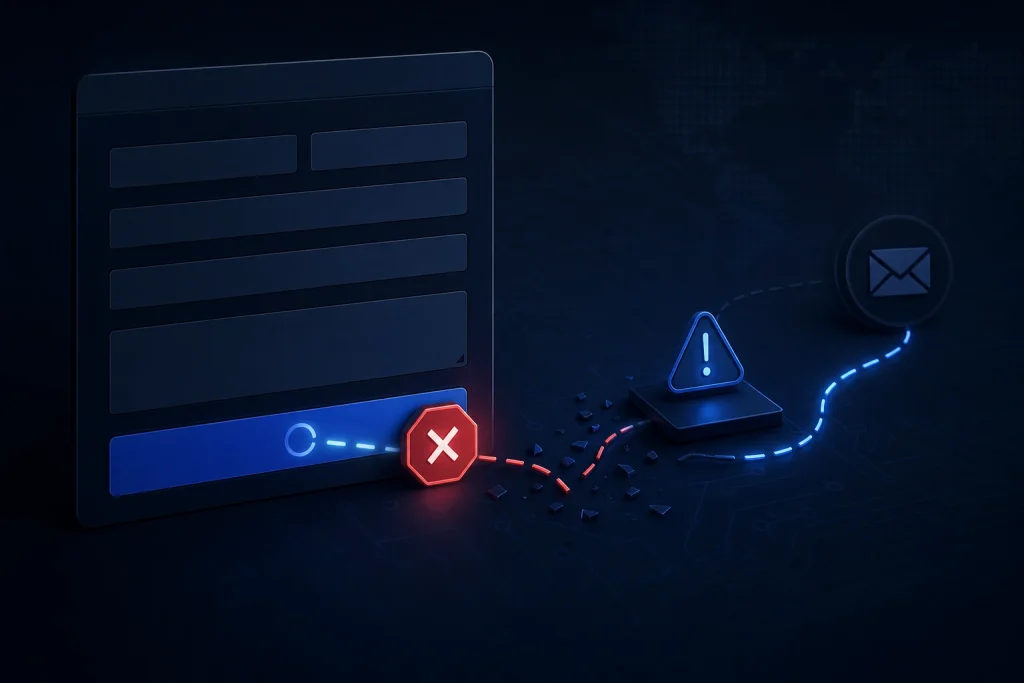
If your Hostinger contact form submissions are not reaching your inbox, check the form setup, notification route, spam filtering and enquiry journey before assuming the whole site is broken.
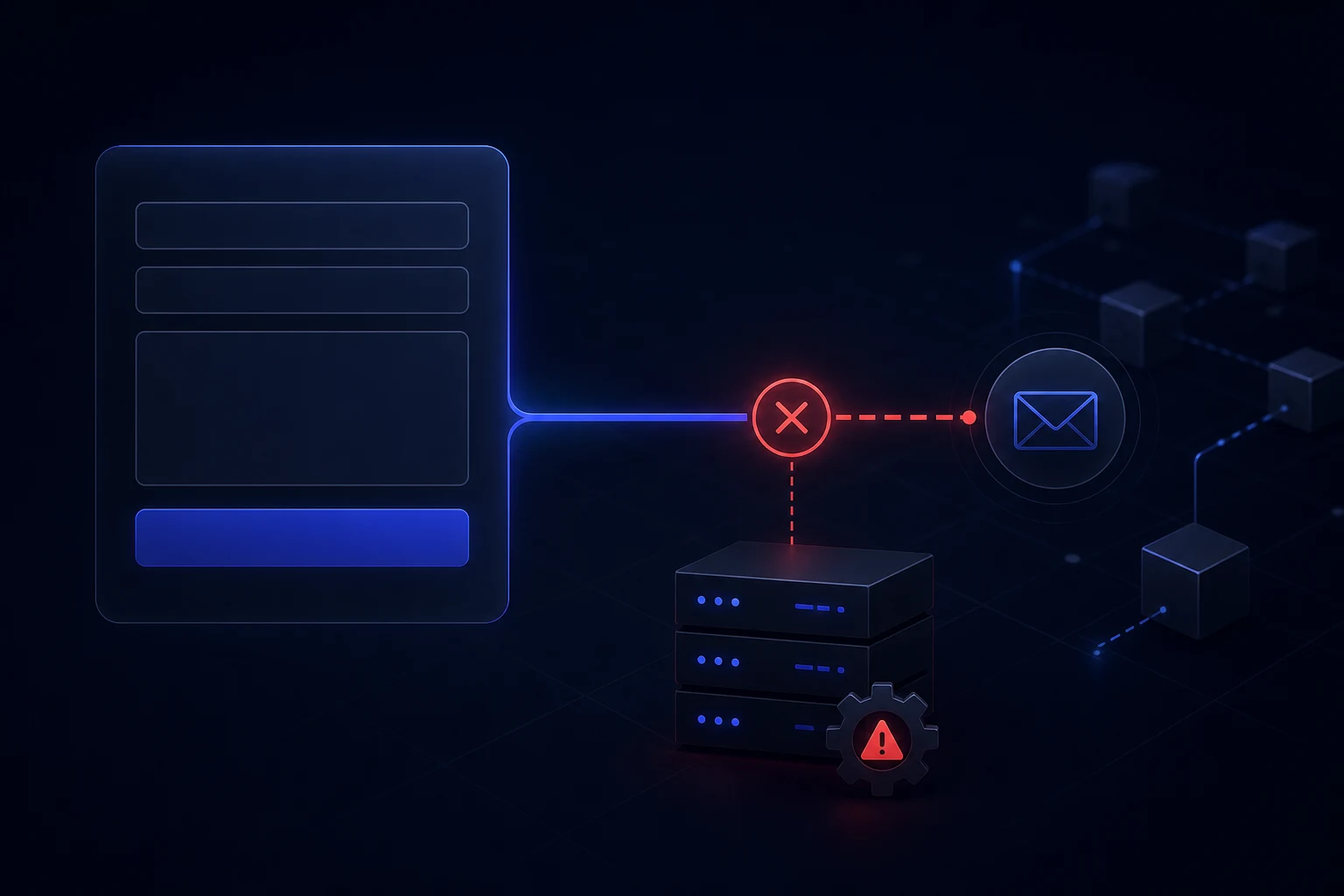
If a Hostinger contact form is not working, the visible form is only one part of the problem. Submissions may be saved somewhere but not emailed, notifications may go to the wrong address, spam filtering may catch them, or the page may not give visitors enough confidence to submit in the first place.
Treat the form as an enquiry route, not a box on a page. A form that looks tidy but does not reliably produce a usable enquiry is still broken from a business point of view.
What the problem looks like
The most common symptoms are form submissions not emailing, test enquiries disappearing, confirmation messages appearing without an inbox notification, messages landing in spam, or the form destination being unclear. Sometimes the button works visually but the business owner never receives the lead.
If the form problem sits alongside weak calls to action or poor page clarity, review it within the wider Hostinger AI website repair journey rather than only checking the form widget.
Specific likely causes
Likely causes include the form destination address, account-linked email settings, spam filtering, notification routing, incorrect recipient fields, a missing confirmation route, mobile button issues, weak privacy or trust copy, and a page that asks for an enquiry before explaining the service.
A Hostinger form can look complete while the email route is still unreliable. Testing with one address is useful, but testing with a second address and checking spam or whitelist settings gives a clearer answer.
What to check first
Submit a safe test enquiry from the public website, not only from the builder. Check whether the confirmation appears, whether the email arrives, which inbox receives it, whether spam filtering catches it, and whether the submitted message contains enough information to respond properly.
If the wider page is also failing to create enquiries, compare the form issue with Hostinger Website Builder not working symptoms so you know whether the problem is form routing, page behaviour or both.
What not to do
Do not rebuild the whole contact page before confirming the notification route. Do not repeatedly change copy or colours if the test email never arrives. Do not assume a successful on-screen message means the business received the enquiry.
Also avoid making the form too long as a quick fix. More fields can create more friction if the page does not already explain why the visitor should trust you.
When to stop editing and get help
Stop when several test submissions fail, when different addresses behave differently, when mobile users cannot complete the form comfortably, or when the page still produces no enquiries even though the form technically submits.
A broader website diagnosis can separate form delivery, CTA clarity, page trust and mobile usability.
Practical checklist
- Submit from the public page.
- Check the recipient and notification settings.
- Look in spam and filtered folders.
- Test with another sender address.
- Test on mobile.
- Check confirmation messages.
- Review calls to action around the form.
- Provide an alternative contact route where appropriate.
Extra form checks before changing the page
Separate form delivery from form persuasion. Delivery is whether the message reaches the right inbox. Persuasion is whether visitors feel confident enough to submit the form. A Hostinger form can fail at either stage. If test messages do not arrive, fix the notification route first. If test messages arrive but real enquiries are weak, review the surrounding page copy, calls to action and trust signals.
Use a simple test log. Record the time submitted, sender address, recipient expected, device, browser, confirmation message and whether the email arrived. If one test arrives and another does not, check spam filtering, forwarding, account-linked addresses and whether the business inbox treats form mail differently from normal messages.
Also check the backup route. A phone number, direct email link or alternative contact option can protect enquiries while the form route is being diagnosed. The backup should not replace fixing the form, but it prevents one technical issue from blocking every lead.
Why form problems affect trust
A contact form problem does more than lose one message. It makes the whole website feel unreliable. If a visitor completes a form and does not hear back, they may assume the business ignored them. If the form confirmation is vague, they may not know whether to submit again, call or leave.
That is why the form should be checked with the surrounding page. The form label, button wording, privacy reassurance, expected response and backup contact route all affect confidence. Reliable delivery matters, but so does making the enquiry step feel safe and worthwhile.
One more useful check is response handling. If the form finally reaches the inbox, make sure the message contains the visitor details, page context and issue description needed to reply. A form can technically deliver but still create poor enquiries if the business receives incomplete or confusing information.
Finally, check whether the contact page gives people enough context before the form. Visitors are more likely to submit when they know what happens after they enquire, how quickly to expect a reply and whether the business is a good fit for their problem.
Conclusion
Hostinger contact form problems are usually fixable, but the right fix depends on whether the failure is delivery, routing, spam, mobile usability or weak enquiry flow. Confirm the route before changing the page design.