
Replit Preview Not Working? Common Causes
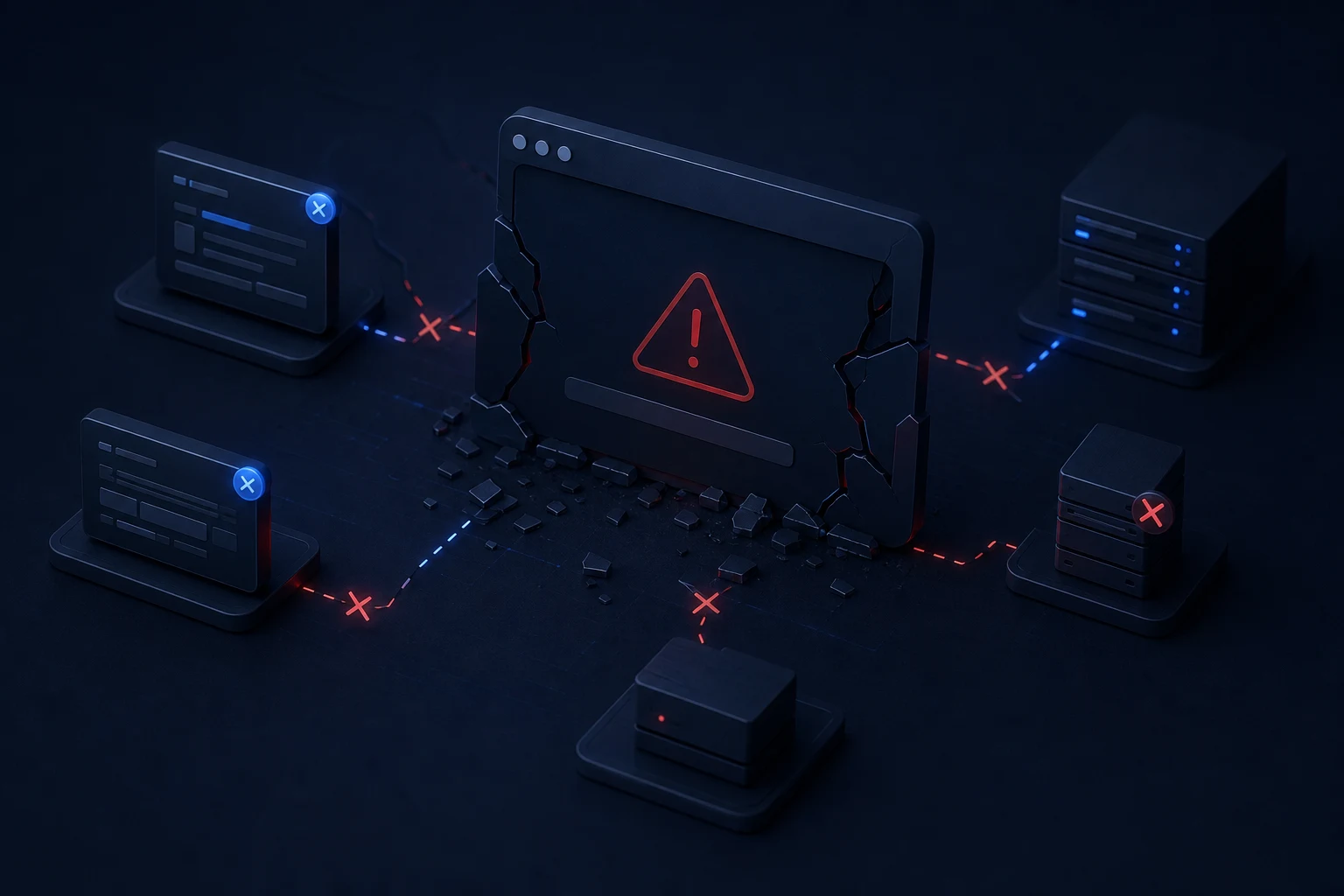
Replit preview problems can come from server startup errors, package issues, port settings, run commands or generated code problems.
When Replit preview is not working, the app may be failing before it ever reaches the browser. The cause might be a server that does not start, a wrong run command, a missing package, a port mismatch, a frontend error, a backend route failure or an external service call that blocks the first render. Treat preview as a diagnostic surface, not as proof that the whole app needs rewriting.
The preview is useful because it gives you quick feedback, but it can also hide where the failure begins. A blank preview, a loading spinner, a connection error and a visible frontend crash all point to different checks. The fastest path is to identify whether the problem starts in Replit’s run output, the browser console, the network tab or the app code.
If you need the whole project checked, use Replit app repair.
What the problem usually looks like
A broken preview often appears as a blank panel, a preview that never finishes loading, a refused connection, a frontend error overlay or an app that opens but cannot call the backend. Sometimes Replit shows a running workspace but the app itself is not actually listening where preview traffic expects it. Other times the server starts correctly and the failure happens in browser-side JavaScript.
Write down the exact behaviour. “Preview not working” is too broad for a useful repair. “Server exits after npm install”, “preview says connection refused”, “page loads but API requests fail”, and “console shows missing module” are much more actionable.
Check whether the server starts
Start with the Replit console or run output. If the server never starts, the browser preview has nothing to display. Look for syntax errors, missing dependencies, failed install steps, incorrect scripts, incompatible package versions or a command that exits immediately. A generated app can look complete in the file tree but still lack the correct script to run it.
If the output says the server is running, check what address and port it is using. A server running on the wrong port can produce the same visible symptom as a broken app. If there is no clear startup message, inspect the package scripts and the main entry file to see what Replit is trying to run.
Check the run or start command
AI-generated projects sometimes contain more than one possible command: one for development, one for production, one for a backend API and one for a frontend dev server. If Replit runs the wrong command, preview can fail even though the code is close to correct.
Check whether the command starts the frontend, backend or both. A full-stack app may need a server that serves the frontend and API together, or it may need a dev setup that runs two processes. If the generated project assumes a local development workflow that Replit is not using, the preview can get stuck before the real app appears.
Check missing packages and imports
Package errors are common after AI edits. A prompt may add a library but not install it, import a package under the wrong name, mix package versions or create a component path that does not exist. These issues often show up in terminal output before the preview renders.
Do not blindly delete package files or reinstall everything without reading the error. A missing module, a peer dependency warning and a framework version mismatch are different problems. If the first meaningful error names a package or import path, repair that specific issue first.

Check ports and frontend/backend mismatch
Preview may fail when the frontend is running but the backend is not, or when the backend is running but the frontend expects a different API URL. Look for network errors in the browser. A request to the wrong host, blocked origin, missing route or failed API call can make the preview look broken even when the page itself loads.
If the app has separate frontend and backend folders, check how they connect. Generated code may hard-code a local URL, assume a different port or call an endpoint that exists only in preview. When that connection is uncertain, trace the preview failure before allowing a broad rewrite.
Check the browser console before rewriting code
If the server starts and the preview opens, the browser console is the next place to look. Runtime errors, undefined variables, failed imports, failed fetch calls and CORS errors often explain why the preview is blank or stuck. Read the first real error rather than every warning.
Console errors also help you avoid unnecessary changes. If the issue is a missing environment variable, rewriting a component will not fix it. If the issue is an import path, changing auth settings will not help. Evidence keeps the repair small.
What not to do
Do not ask Replit Agent to rebuild the whole app because the preview is blank. Do not paste a long stream of unrelated warnings into a prompt and ask for a general fix. Do not keep changing packages without knowing which package is failing. Do not assume the last file edited is the file at fault.
A safer approach is to capture the server output, the first console error, the command being run and the route being previewed. If a generated code fault is the likely cause, AI code repair can be targeted. If the problem is server startup, package setup or config, it needs a different repair path.
When to get help
Get help when the preview error keeps changing, when the app has separate frontend and backend parts, when package changes have become messy, or when the project is needed for a launch or client review. Preview failures are often fixable, but repeated prompting can turn one startup issue into several code and config problems.
Practical checklist
- Check whether the Replit server actually starts.
- Read the first run output error.
- Confirm the run or start command.
- Check which port the app uses.
- Check missing packages and import paths.
- Open the browser console and network tab.
- Check frontend API URLs and backend routes.
- Avoid broad preview rebuild prompts.
Conclusion
A broken Replit preview is usually traceable. Start with startup output, then package and command checks, then browser console and network errors. Repair the first failing layer before asking AI to change the rest of the app.