
Wix Harmony Website Won’t Save or Publish Changes
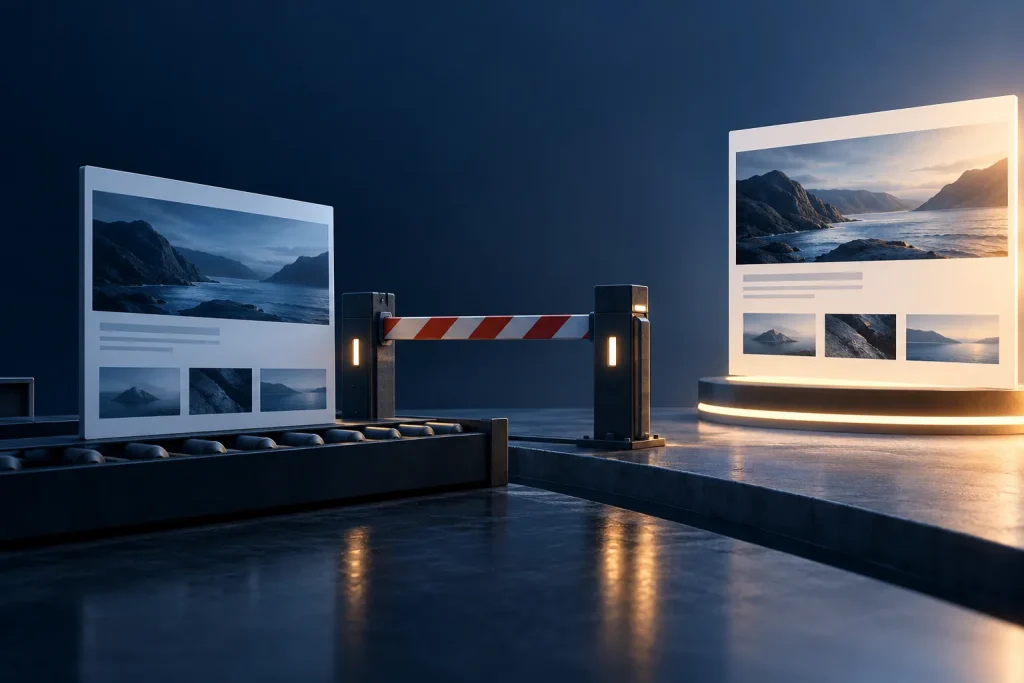
Wix Harmony changes keep disappearing or won't appear on your live site. Separate save failures, publish errors and stale public pages.
You’ve made changes in Wix Harmony, but the editor won’t save them properly, publishing fails, or the public site still shows the old version. You may have spent an afternoon getting the layout right only to find that visitors can’t see it. If the change involved a price, booking option or contact detail, that’s more than an irritation.
When Wix Harmony won’t save or publish changes, distinguish three failures: edits not being saved, a saved version not being published, and a successful publication not appearing on the live URL. Each needs a different check. Repeating the same publish action or rebuilding the page before identifying the failing stage can waste time and risk losing work.
Check whether your changes were saved at all
Wix Harmony has autosave and also allows manual saving. Its official save and publish guide explains that saved edits remain in the editor until you publish them.
Start with one small, recognisable change. Don’t test by restructuring a complete page. Check the Autosave indicator and its last saved time, then confirm the change is still there after leaving the page and returning in a controlled way.
If the edit disappears before publishing, the problem is in the editor or save process. Note whether it affects all pages or one component. Record the browser, account, page and exact error wording. Don’t clear browser data indiscriminately while unsaved changes may still exist.
If the change persists in the editor, don’t keep making cosmetic adjustments. Move to the publishing stage instead.
Saving and publishing are separate operations
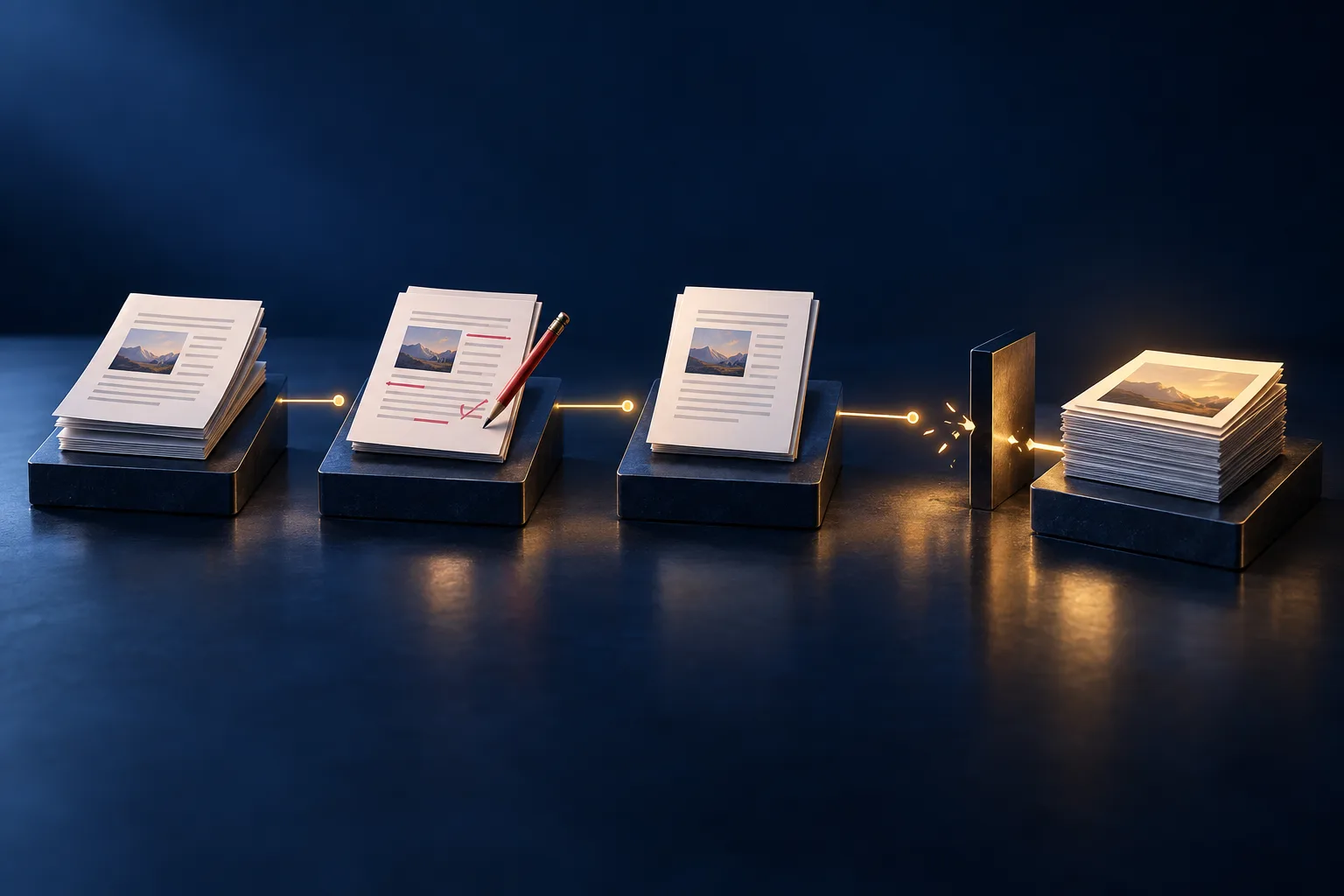
A saved Wix Harmony page is not necessarily live. The Publish action makes the saved version available to visitors. This may seem obvious, but it’s a useful distinction when a site owner has made several changes and can’t tell which ones reached production.
Open Preview and confirm the edited feature appears there. Then publish and wait for the confirmation message. Visit the actual public website address, not the editor preview or an old bookmark that takes you somewhere else.
If the Publish button reports an error, capture the wording and time. If it reports success but nothing changes publicly, record the public URL, the affected element and whether another page shows the new version.
One failed component and a whole site that never updates are different cases. If only a booking widget fails, the publish itself may have succeeded while the widget is failing at runtime.
Check the site history before attempting a rollback
Wix provides site history, allowing you to inspect saved and published versions and identify who changed them. This is particularly useful when multiple people can edit a website.
Compare the timestamps for the last version that definitely worked, the version you intended to publish and the currently visible live site. If the content changed unexpectedly, check whether another collaborator edited the same element.
Wix documents that Harmony collaborators can work simultaneously and that the most recent save may override conflicting changes. Ask the team to stop editing the affected page while you identify the version to preserve.
Don’t restore an earlier version simply because it’s familiar. Wix warns that restoring site history does not roll back every connected dataset or application component. Store orders, contacts and some CMS content may have different restoration behaviour. Restoring the layout is not the same as recovering every change made across the site.
Before using Restore, understand the consequences for SEO settings, dynamic pages and business data. Preserve evidence of the current state and use a controlled change if a rollback is justified.
Why is the published site still showing an older version?
If Wix reports successful publication, check the live page in a private browser window and, if possible, a different device. This helps distinguish a local browser problem from an issue affecting normal visitors.
Wix’s Harmony guidance recommends testing a private window and republishing if recent changes are absent. Cache may be involved, but don’t make it the automatic explanation. Compare the public page address and make sure you are viewing the right site and domain.
If the free Wix address shows the current version but your custom domain does not, investigate domain routing and DNS. If both show the old version, look at publication history and the website’s actual state before changing DNS records.
A browser cache issue should have reproducible evidence: one environment loads the expected asset while another loads an older version. If the latest HTML and assets are already present, the problem may lie inside a dynamic component or its source data rather than the site’s publishing pipeline.
Is a particular widget or app causing the failure?
Wix Harmony uses its own editor and product capabilities. Some features, third-party apps and existing Wix workflows may behave differently from those available in another Wix editor.
If the site saves and publishes but a connected shop, booking feature, form or chat widget fails, test that function separately. Can a new visitor submit a form? Does an order reach the correct system? Are products appearing for a normal customer account rather than only in an editor preview?
Check whether the feature is currently supported in Harmony and whether it has been configured for the right site. Don’t assume that switching editors is possible or safe for the same project, and don’t rebuild a working shop simply because one widget displays incorrectly.
Where an external integration is involved, record the service, user action, expected result and failed request. A broken payment or lead-capture workflow deserves more urgent attention than a missing decorative element.
Rule out browser, session and account problems carefully
The editor runs inside your browser, so browser extensions, expired sessions and permissions can affect how it behaves. Check whether the same action fails in a clean private session or another supported browser.
Don’t use Microsoft Edge merely because another troubleshooting guide suggests it. A current supported browser is enough for a sensible comparison. Sign in to the correct Wix account, then confirm you are editing the right site rather than a duplicate or older project.
If you’re a collaborator, check that your assigned role includes edit and publish permissions. Wix’s Harmony collaboration guidance explains that these permissions are distinct.
Avoid removing integrations, clearing all browser storage or revoking collaborator access as a first attempt. Each action can create new problems and erase useful evidence of the initial fault.
Preserve the failed publication evidence
If a change still won’t publish, prepare a short factual record:
- The site and exact affected public page.
- The time the last successful version appeared.
- Whether the edit remains saved in Harmony.
- Whether Preview shows the expected version.
- The result and wording of the Publish action.
- What a private browser window shows at the public URL.
- Whether the failure happens on every page or only one feature.
A screen recording can help if the error is intermittent. Keep customer information, unpublished business details and account credentials out of anything sent publicly.
If Wix has an acknowledged publishing incident, preserve the working version and follow its support guidance. Developers cannot repair Wix’s own publishing servers. If a specific custom-code or integration change is causing the failure, the relevant code or configuration may be repairable.
Don’t spend hours rebuilding a page without knowing why
When an editor stops saving, it is tempting to copy the whole design to a new page. That can introduce new URLs, lost links, missing metadata and duplicate content without fixing the original cause.
If customers rely on the page, consider whether a temporary, verified notice or alternative contact method is warranted. Don’t promise that a broken checkout or contact form is functioning until you’ve tested it through as an ordinary visitor.
My wider guide to Wix AI sites not working covers broader faults. This article focuses on the specific save, publication and visible-version sequence in Harmony.
When should you seek technical help?
If the issue is a missing publish step, a stale local browser or insufficient permissions, the checks above may resolve it without professional intervention. If save history is inconsistent, one component causes repeated errors or a live business feature fails, you need an investigation that keeps the evidence intact.
Through AIWebsiteRepair.com, I can provide a paid diagnostic of the accessible site, configuration and affected features, and explain whether the problem is repairable or requires Wix support. Any subsequent work is separate.
My recommendation: verify save, preview and publication in that order, protect the last known good version and investigate the precise failing stage before changing anything else.